Fluentive vs Google Calendar: Which Is Better for Small Businesses?
Google Calendar is free, familiar, and works great for personal scheduling. But when you need to manage clients, coordinate a team, and track who had what appointment, it starts to show its limits.
Written by Peter, Founder of Fluentive ·
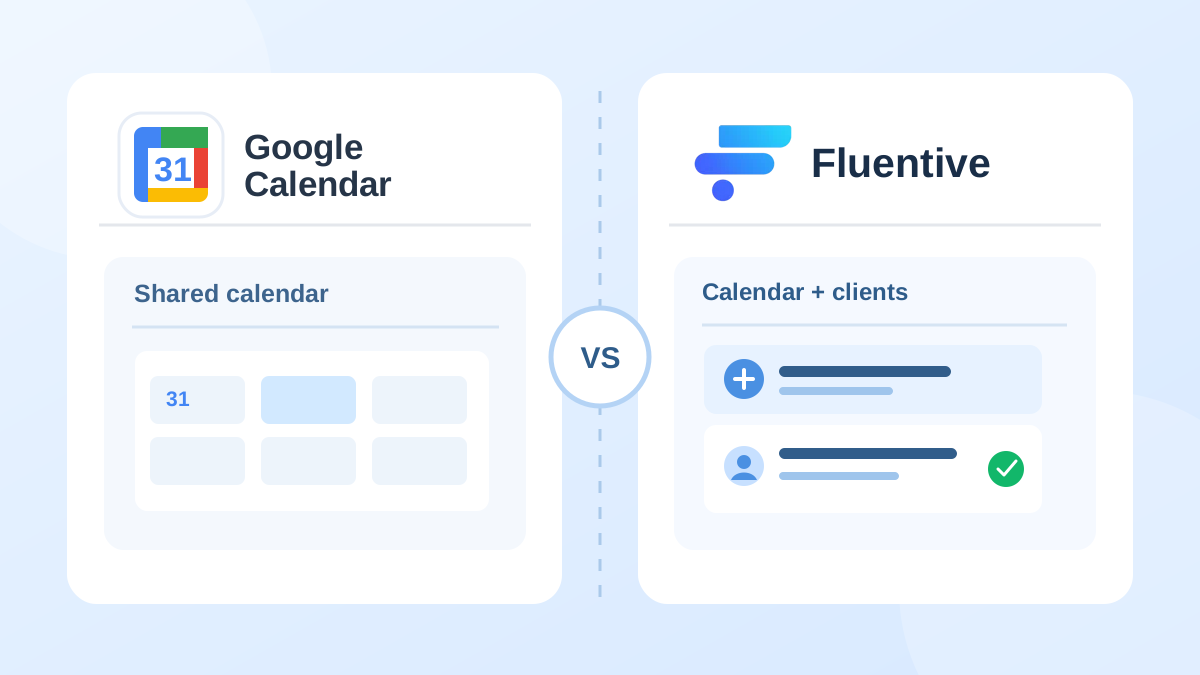
Google Calendar is one of the most widely used calendar apps in the world. It's free, it works on every device, and most people already have a Google account. So it's natural for small businesses to start there.
The question isn't whether Google Calendar is good. It is. The question is: is it good enough for running a service business with clients and a team?
This article looks at both tools honestly, from the perspective of a small service business: a salon, a clinic, a coaching practice, a field service team, or any professional who manages real clients and real appointments, not just personal reminders.
Where They Are Similar
Both tools cover the scheduling fundamentals most people expect from a calendar app.
- Day, week, and month calendar views
- Recurring events - daily, weekly, monthly, or custom patterns
- Reminders and notifications before events
- Color coding and event categories
- Access from any device, any browser
If you need a personal calendar to keep track of your own appointments, both tools will do that job equally well. Google Calendar does it for free.
But "personal calendar" and "business scheduling tool" are two different things.
Where the Differences Start to Matter
The moment a second person joins your business, or the moment you need to know which appointment belongs to which client. At this point, the two tools start to diverge in meaningful ways.
1. Seeing Your Team's Full Schedule Without Manual Setup
Google Calendar can display multiple calendars in a single view, but each team member must first share their personal calendar with the others. This sounds simple, but in practice it means every new hire has to remember to share their calendar, every person manages their own permissions, and there's no central admin control over what gets shared and with whom.
Fluentive gives every team member a unified calendar from day one. When you add someone to your account, they appear in the team view immediately. No sharing requests, no permission juggling. You see everyone's schedule at a glance and you get the same view for everyone on the team.
2. Assigning Multiple Staff to a Single Appointment
Many service businesses need more than one person for a single job. A physio session might involve a therapist and a rehabilitation assistant. A field service call might need two technicians. A medical procedure might require a doctor, a nurse, and a receptionist to be aware of it.
Fluentive lets you assign multiple team members to one event directly. All assigned staff see it on their calendar. That's it.
Google Calendar works differently. You can add "guests" to an event, but guests receive email invites, it's a meeting coordination model, not a service job assignment model. For a business that runs 20–30 appointments a day, sending email invites to your own staff for every booking is not a practical workflow.
3. Knowing Your Clients - Not Just Your Events
This is the biggest practical difference between a calendar and a business tool.
Google Calendar stores events. It does not store clients. Each appointment in Google Calendar is an isolated entry with fields like a title, a time, a description you typed. There is no link between that event and a person in your contacts. There is no way to open a client's profile and see every appointment they've ever had with you, the notes from each visit, or the tasks outstanding for their account.
In Fluentive, every appointment is linked to a client. Open any contact profile and you see their full history: every appointment, every task, every note, in chronological order. Before a session, you know exactly what happened last time. After a session, you add your notes and they're attached to that person forever - not floating in a calendar event nobody will search for again.
For a doctor, a coach, a beautician, or any professional whose work is built on knowing the people they serve. This difference is not minor, it's the entire point.
4. Custom Workflow States and Event Categories vs Colours
Google Calendar gives you colors. You can assign a color to an event or a calendar. That's the extent of status tracking.
Fluentive gives you two complementary layers of organization, both fully customizable:
Event Categories let you classify what type of event it is. Each category has its own name and color, so your calendar is instantly readable at a glance. A medical practice might define categories like Consultation, Follow-Up, Procedure, and Administrative. A salon might use Cut, Color, Treatment, and Training. You create the categories that match how your business actually works.
Workflow States let you track where each event stands in your process — independent of its category. A salon might use: Booked, Confirmed, Arrived, Done, No-Show. A medical practice might use: Scheduled, Confirmed, In Exam, Completed, Follow-Up Needed. A field service team might use: Pending, Dispatched, On Site, Done, Invoiced. Each state has its own name and color, so the current status of every appointment is visible without opening it.
Together, these two layers let you see at a glance not just what kind of appointment something is, but where it stands in your workflow. That's the difference between coloring events and actually managing them.
5. Tasks That Belong to Clients, Not Just to Dates
Google has Google Tasks, which is integrated into Google Calendar. It works well for personal to-do lists. But tasks in Google are standalone items — they have a due date and a title, and that's mostly it. There is no way to say "this task belongs to this client."
In Fluentive, every task can be linked to one or more clients. When you open that client's profile, you see both their appointment history and their outstanding tasks together. A follow-up call, a document to send, a result to check — all visible in one place, associated with the right person.
6. Seeing Who an Appointment Is For — Without Clicking Into It
In Fluentive's calendar view, every event shows the linked client's name alongside the event title. At a glance: "Initial Consultation — Olivia Hayes". You know who it is without opening anything.
In Google Calendar, events display whatever title you typed when you created them. If you want to know whose appointment it is, you need to open the event — or remember to include the client's name in the title every single time, manually.
Across a full day of appointments, this adds up to a lot of unnecessary clicks and a higher chance of errors.
7. Custom Working Hours Per Day of the Week
Google Calendar lets you define working hours, which hides non-working time in some views. But it applies the same hours to every working day. There is no native way to say "Tuesday is 8:00–14:00 and Thursday is 9:00–19:00."
Many small businesses don't keep uniform hours. A clinic might close early on Wednesdays. A salon might start later on Mondays. A trainer might have split shifts on certain days.
Fluentive lets you configure different start and end times for each day of the week, so your calendar accurately reflects when you're actually working — not a generic block that ignores your real schedule.
8. Role-Based Access for Your Team
With Google Calendar, everyone who can see a shared calendar can essentially see everything on it. Fine-grained control — like allowing a receptionist to manage bookings but not see client notes — requires workarounds that quickly become difficult to maintain.
Fluentive has built-in role-based access: admins have full access, standard users can manage their calendar and tasks but can't access admin settings, and you control what each person can see. No workarounds needed, no permissions headaches.
What Google Calendar Does Better
A fair comparison has to include where Google Calendar genuinely wins.
- It's free. Google Calendar is completely free with a Google account. For a solo freelancer or someone who only needs a basic personal calendar, the cost argument for Fluentive doesn't apply. Fluentive's value becomes clear once you have clients and team members to manage.
- Google Workspace integration. If your business runs on Gmail, Google Meet, Google Drive, and Google Docs, Google Calendar ties everything together natively. Creating a Meet video call from a calendar event is one click. Fluentive is a standalone tool with no Google Workspace integration.
- Polished mobile apps. Google Calendar's iOS and Android apps are among the best calendar apps available. Fluentive currently operates as a Progressive Web App (PWA) — which works well on mobile but native apps are still in development.
- Appointment scheduling pages. Google Calendar has a built-in appointment booking feature that lets clients book a slot via a public link. Fluentive does not currently offer a public-facing booking page — it's an internal team tool.
- Universal familiarity. Almost everyone knows how to use Google Calendar. If you share a calendar invite with a client or partner, they'll know what to do with it.
The Core Difference in What Each Tool Is Built For
Google Calendar is a personal scheduling tool that grew to support teams and Workspace collaboration. It's built for individuals first, and that shapes everything about how it works: events are personal, contacts are personal, sharing is manual.
Fluentive is built from the ground up for small service businesses and solopreneurs too. The entire product is designed around a different starting assumption: that you have clients, that you have a team, and that the two are connected. The calendar shows your team. The contacts show your clients' history. The tasks belong to specific people. Everything is connected by default — not as an add-on.
The practical result: when you open Fluentive for your first appointment of the day, you already know who it is, what happened last time, and what's outstanding. When you open Google Calendar, you see a colored block with a title you typed.
Feature Comparison
| Feature | Fluentive | Google Calendar |
|---|---|---|
| Calendar views (day / week / month) | Yes | Yes |
| Recurring events | Yes | Yes |
| Reminders & notifications | Yes | Yes |
| Team calendar — built-in, no manual sharing | Yes — built-in, zero setup | Partial — requires each person to share their calendar manually |
| Multiple employees assigned to one event | Yes | No — guest invites only (email-based) |
| Client profiles with appointment history | Yes — full history per client | No |
| Shared client database for team | Yes — built-in | No |
| Tasks linked to specific clients | Yes | No — Google Tasks are standalone |
| Custom event categories (name + color) | Yes — fully customizable per business | Partial — fixed color labels only, no custom names |
| Custom workflow states for events (name + color) | Yes — user-defined workflow states | No — no workflow status tracking |
| Custom working hours per day | Yes — per day of week | No — single uniform block |
| Appointment view shows client name | Yes — visible directly on calendar | No — event title only |
| Role-based access control | Yes — simple, built-in | Limited — calendar-level sharing only |
| Search contacts by TIN / SSN | Yes | No |
| Public booking page for clients | No | Yes — Google Calendar Appointments |
| Video meeting integration | No | Yes — Google Meet, native |
| Native mobile app | Coming soon (PWA available now) | Yes |
| Free plan | Free trial available | Yes — free with Google account |
Who Should Use What
Fluentive is the right fit if:
- You manage clients and need their full appointment history at your fingertips
- You run a team and need everyone's schedule visible in one place without manual sharing
- Multiple team members are sometimes assigned to the same appointment
- You need tasks linked to specific clients, not just floating to-do items
- You want custom workflow states that reflect your business process
- You need per-day working hours that match your actual schedule
- You want to be up and running in minutes, with no configuration required
Google Calendar is the right fit if:
- You primarily need a free personal calendar with reminders
- Your workflow is built around Google Workspace — Gmail, Meet, Drive, Docs
- You need clients to book appointments via a public booking link
- Video call scheduling with Google Meet is central to how you work
- You are a solo professional who does not manage a team
Can You Use Both?
Yes — and it's a reasonable combination. Many small businesses use Google Workspace for email, video calls, and document collaboration, while using Fluentive for client scheduling, team coordination, and appointment tracking. The two tools don't conflict; they serve different jobs.
The pattern we see most often: a business already has Google accounts and uses Gmail and Meet, but tries to run their appointments through Google Calendar — and eventually hits a wall when they need to track client history or coordinate more than two people. That's when they add Fluentive specifically for the client and team management side.
Bottom Line
Google Calendar is an excellent personal scheduling tool. For a solo professional who just needs a calendar and already uses Google Workspace, it's hard to argue against using it — it's free and it works.
But for a business that manages real clients with real histories, and coordinates a team where multiple people need to see and act on the same schedule — Google Calendar reaches its limits quickly. It wasn't designed for that job.
Fluentive was. It's built specifically for small service businesses that need more than a shared calendar: they need a shared understanding of every client, every appointment, and who is doing what — without complexity, without manual setup, and without a week of onboarding. It's the same shared record that medical practices and clinics rely on to track every patient and appointment.
If that's what your business needs, Fluentive will do it better.
See the difference for yourself
Try Fluentive free — no credit card required. Get your team set up in minutes.
Try Fluentive Free