How-To Guide
How to Install Fluentive as an App on Android, iPhone & Windows
No App Store required. Fluentive is a Progressive Web App — install it in seconds directly from your browser on any device.
· 5 min read
Written by Peter, Founder of Fluentive ·
What is a PWA?
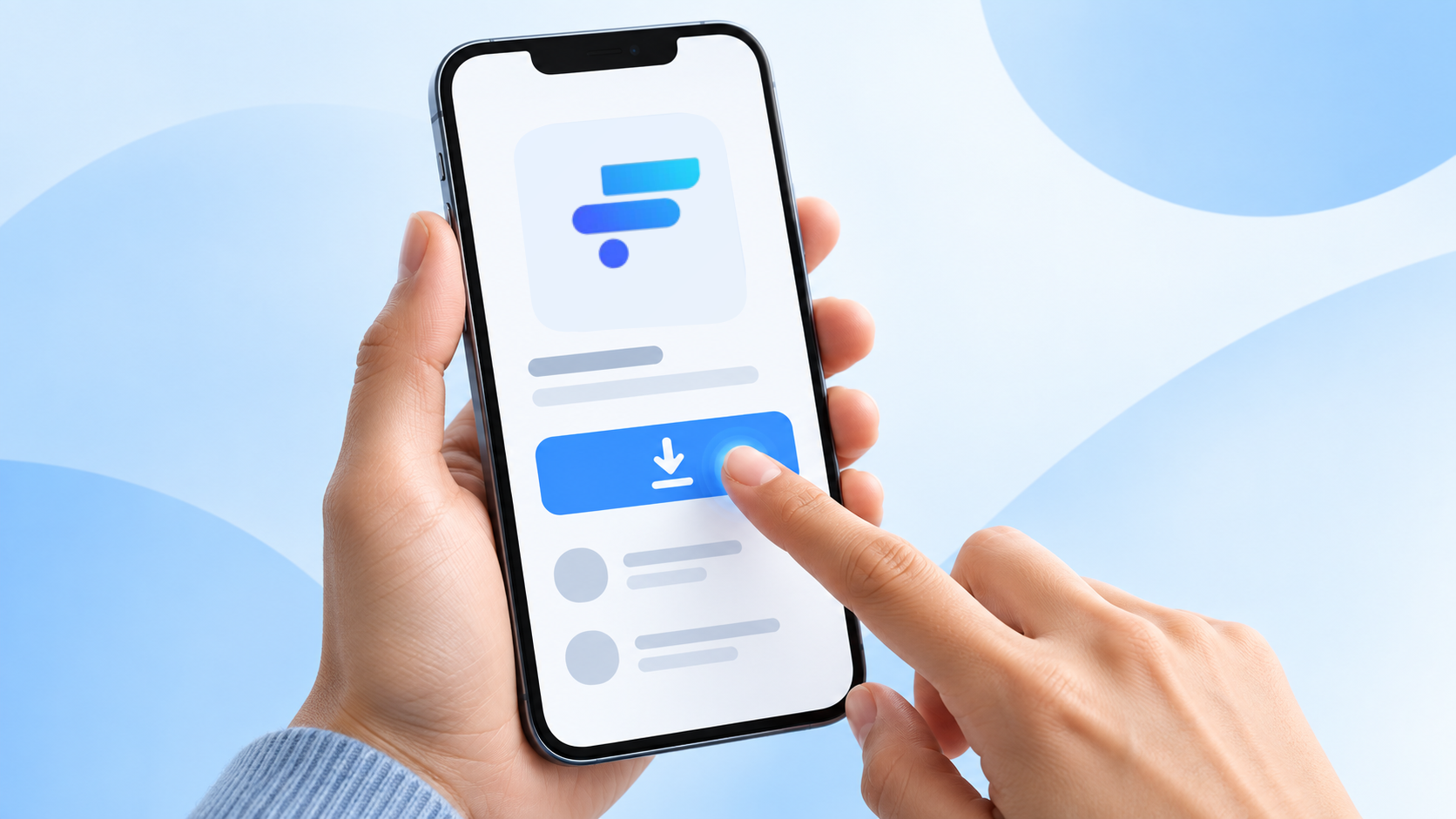
A Progressive Web App (PWA) is a website that can be installed on your device and behaves exactly like a native mobile or desktop app — complete with its own icon on your home screen or taskbar, a full-screen interface without browser toolbars, and fast loading times.
The key advantage: no App Store, no Play Store, no downloads. You install it straight from your browser in about 10 seconds.
Fluentive is fully PWA-ready. Once installed, it launches in its own window, looks like a native app, and keeps all your data synced in real time across devices.
Why Install Fluentive as an App?
- One tap access — launch directly from your home screen or taskbar, no need to open a browser.
- Full-screen experience — no address bar or browser tabs cluttering the interface.
- App icon on all your devices — phone, tablet, and desktop in one install per device.
- Faster loading — the app shell is cached by the browser for near-instant startup.
- Always up to date — updates happen automatically in the background, just like a web app.
Installing on Android
Android has the best PWA support of any mobile platform. Chrome, Edge, and Firefox all let you install Fluentive directly. The icon will appear on your home screen just like any other app.
Chrome on Android
- Open app.fluentive.app in Chrome.
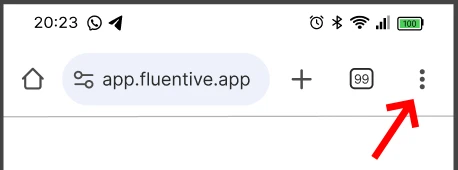
- Tap the three-dot menu (⋮) in the top-right corner of the browser.
- Tap "Add to Home Screen" (or "Install app" if you see a banner at the bottom of the screen).
- Tap "Add" to confirm. The Fluentive icon will appear on your home screen.

Firefox on Android
- Open app.fluentive.app in Firefox for Android.
- Tap the three-dot menu (⋮) in the bottom-right corner.
- Tap "Install". If you don't see "Install", tap "Add to Home Screen" instead.
- Tap "Add" to confirm.
Installing on iPhone (iOS)
On iPhone, Safari is the recommended browser for installing PWAs, as it has supported this feature the longest. However, on iOS 16.4 and later, Chrome, Firefox, and Edge can also install PWAs using their built-in share menus.

Safari on iPhone
- Open app.fluentive.app in Safari on your iPhone.
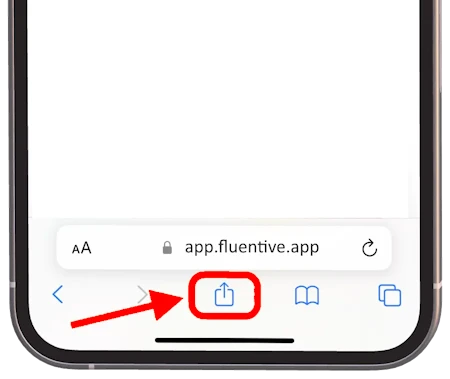
- Tap the Share button — the square icon with an upward arrow, located at the bottom center of the screen.
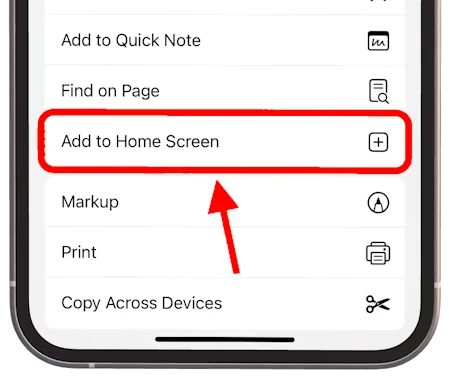
- Scroll through the share sheet and tap "Add to Home Screen".
- Optionally edit the name, then tap "Add" in the top-right corner.
Installing on Windows
On Windows, both Chrome and Microsoft Edge support PWA installation with full desktop app features — including a standalone window, taskbar icon, and Start menu shortcut. Firefox on Windows does not currently support PWA installation.
Chrome on Windows
- Open app.fluentive.app in Google Chrome.
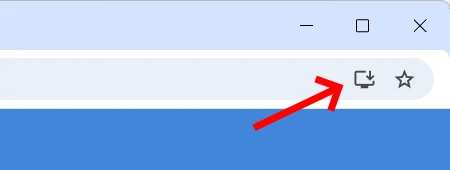
- Look for the install icon in the address bar — a computer monitor with a small down arrow (⊕). Click it.
- Alternatively, click the three-dot menu (⋮) → "Install Fluentive…".
- Click "Install" in the dialog. Fluentive opens in its own app window, and a shortcut is added to your desktop and Start menu.

Microsoft Edge on Windows
- Open app.fluentive.app in Microsoft Edge.
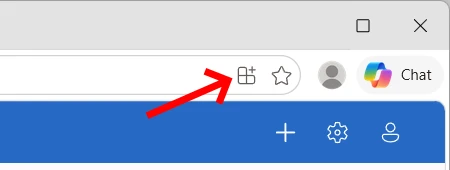
- Look for the install icon in the address bar — a small "+" inside a rectangle. Click it.
- Alternatively, click the three-dot menu (⋯) → Apps → "Install this site as an app".
- Click "Install" in the confirmation dialog. Fluentive will be pinned to your taskbar and appear in the Start menu.
Frequently Asked Questions
Does the Fluentive PWA work offline?
Fluentive requires an internet connection to sync and display your data. However, once installed as a PWA, the app shell loads instantly — faster than opening a new browser tab — because the interface is cached locally on your device.
Is the PWA the same as downloading Fluentive from an App Store?
Yes — the Fluentive PWA is the same full application. It runs at app.fluentive.app, launches in a standalone window without browser navigation bars, and gives you access to every feature: calendar, client management, task tracking, and team administration.
How do I uninstall the Fluentive PWA?
Android: Long-press the Fluentive icon on your home screen and tap "Remove" or "Uninstall".
iPhone: Long-press the Fluentive icon and tap "Remove App" → "Delete App".
Windows (Chrome/Edge): Right-click the Fluentive app in the Start menu and select "Uninstall", or open the app, click the three-dot menu inside the app window, and choose "Uninstall Fluentive".
Will my data sync across devices?
Yes. All your data — contacts, events, tasks, and settings — is stored in the cloud and syncs automatically. Install Fluentive on your phone, tablet, and computer, and everything stays in sync in real time.
Do I need to update the PWA manually?
No. The PWA updates automatically in the background whenever you use it. You always have the latest version of Fluentive without any action required on your part.
Ready to get started?
Open Fluentive in your browser and install it in seconds — no App Store, no credit card required.
Related Articles
Client Management